Desktop software. Local data. Your control.

Explore AWS and Azure from your own computer.

NetworkLink.EU is a downloadable desktop application for Windows, macOS and Linux. It runs locally on your computer, rather than as a cloud-hosted service.

Keep your infrastructure data private. Your AWS and Azure inventory, snapshots and diagrams are stored locally and are not uploaded to NetworkLink.EU servers. You retain control over what you export and share.

Runs on
  • Windows
  • macOS
  • Linux
Download
The desktop workspace for AWS and Microsoft Azure

Your cloud network. Connected. Understood.

See how your AWS and Azure resources fit together. Investigate network paths, understand what changed, and turn your findings into diagrams.

Read-only AWS and Azure collection. Local snapshot history.
Topology explorerNetworkLink.EU
Structured 2D3DConnections 2D3D
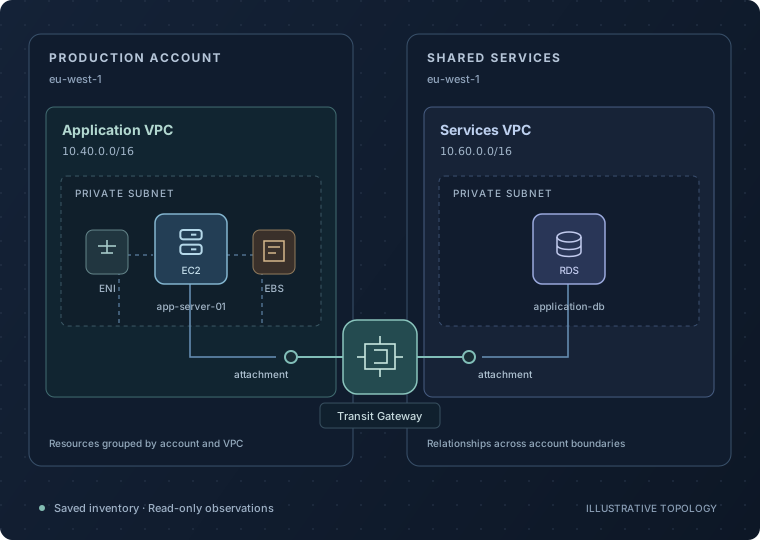
Example topology: application and shared-services VPCs in two AWS accounts, with resources and Transit Gateway attachment relationships.
AWS topology exampleIllustration · not a live account
Four map viewsStructured and Connections · 2D / 3D
AWS + AzureSeparate workspaces · One shared allowance
IPv4 + IPv6Address lookup and supported path analysis
Offline explorationKeep working with saved snapshots
Inside the app

See your infrastructure in context.

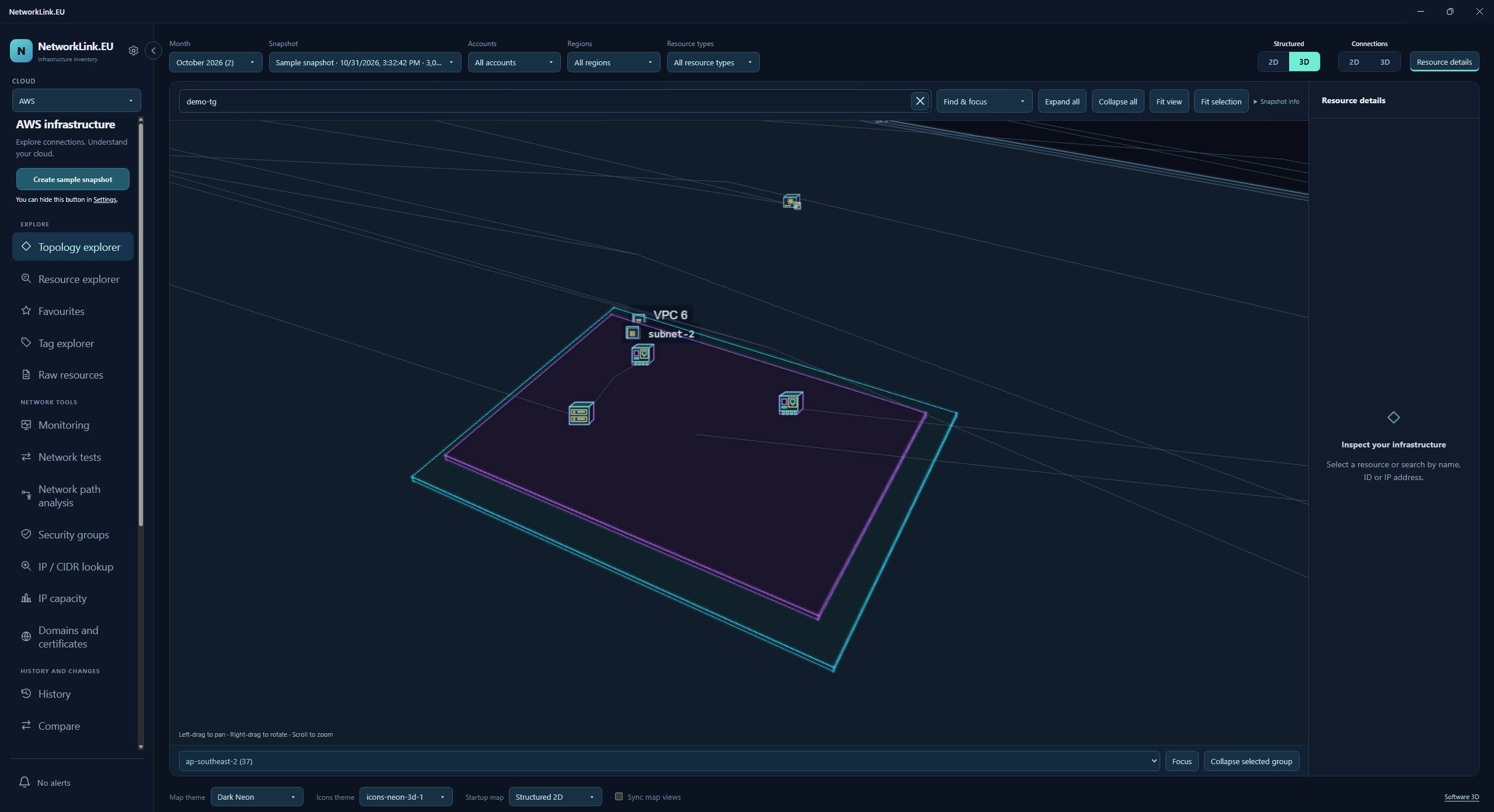
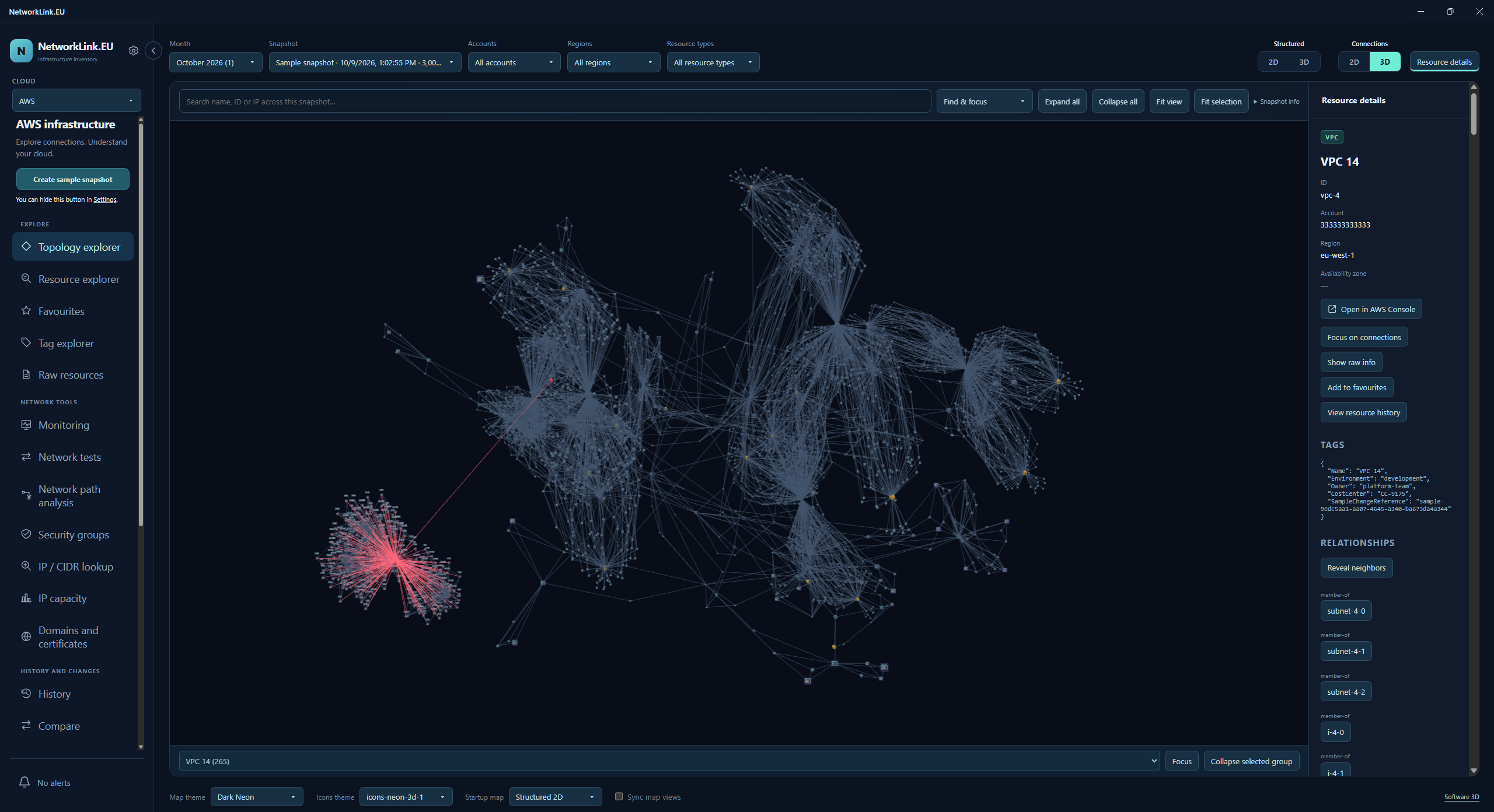
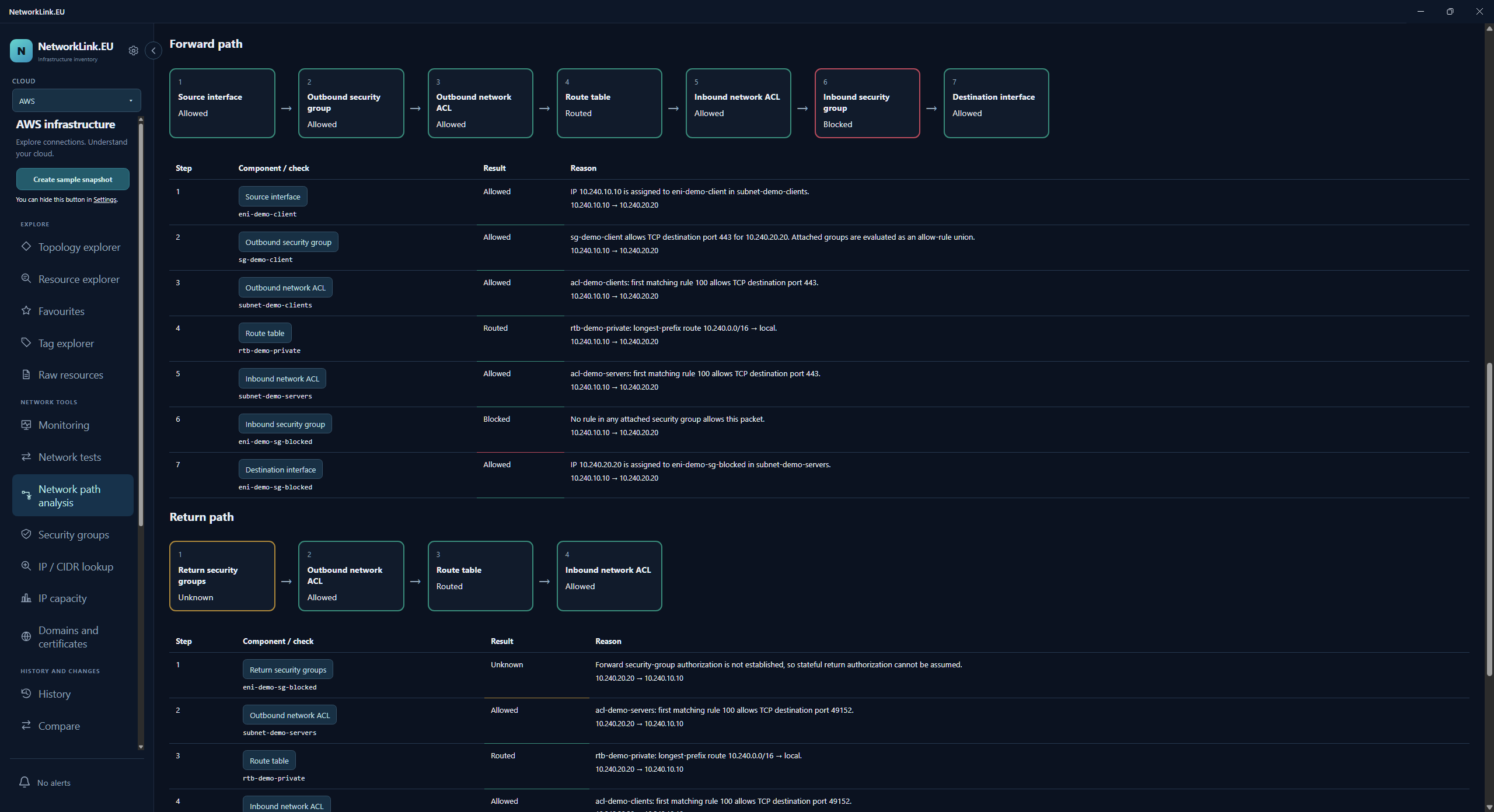
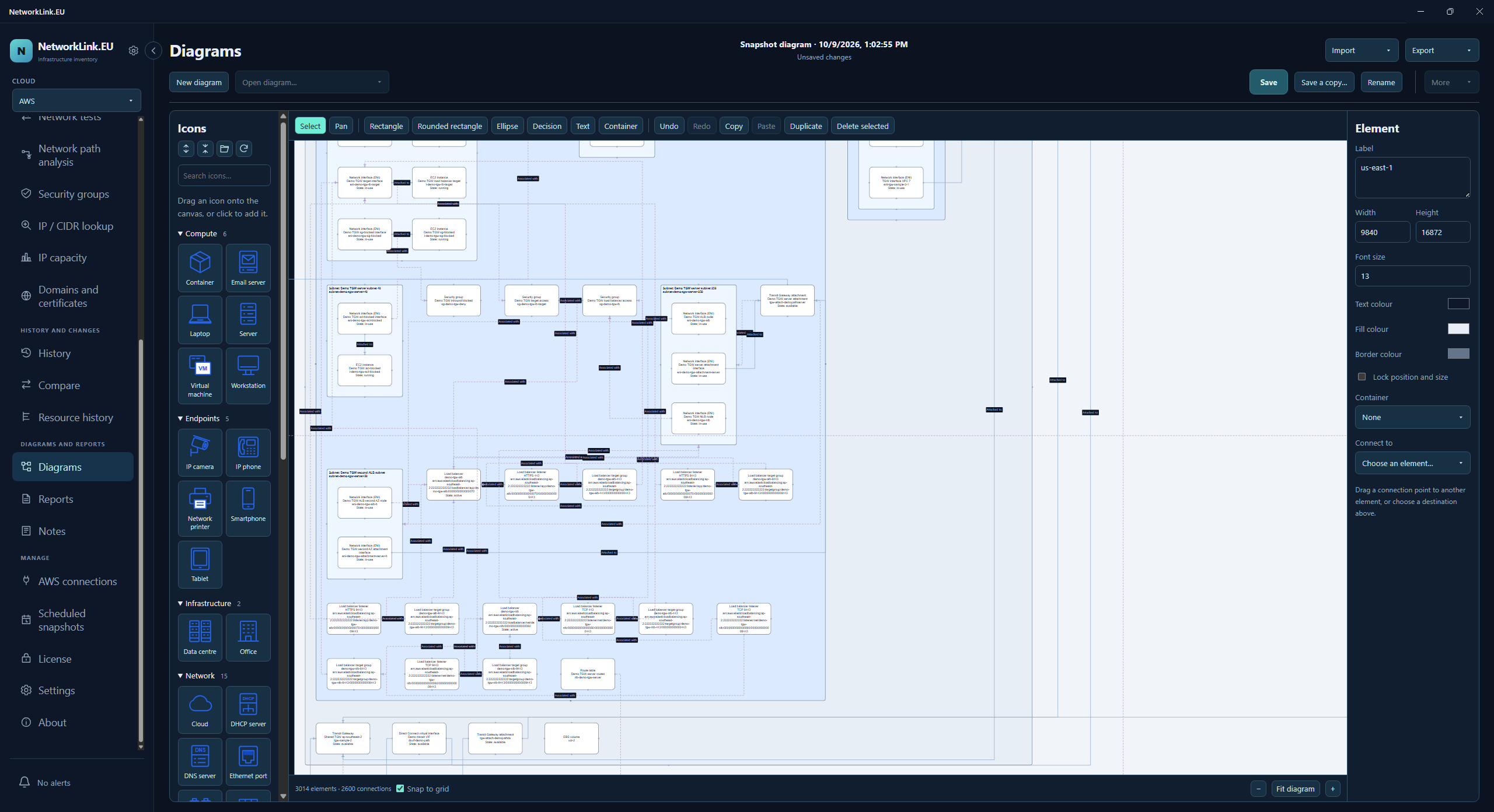
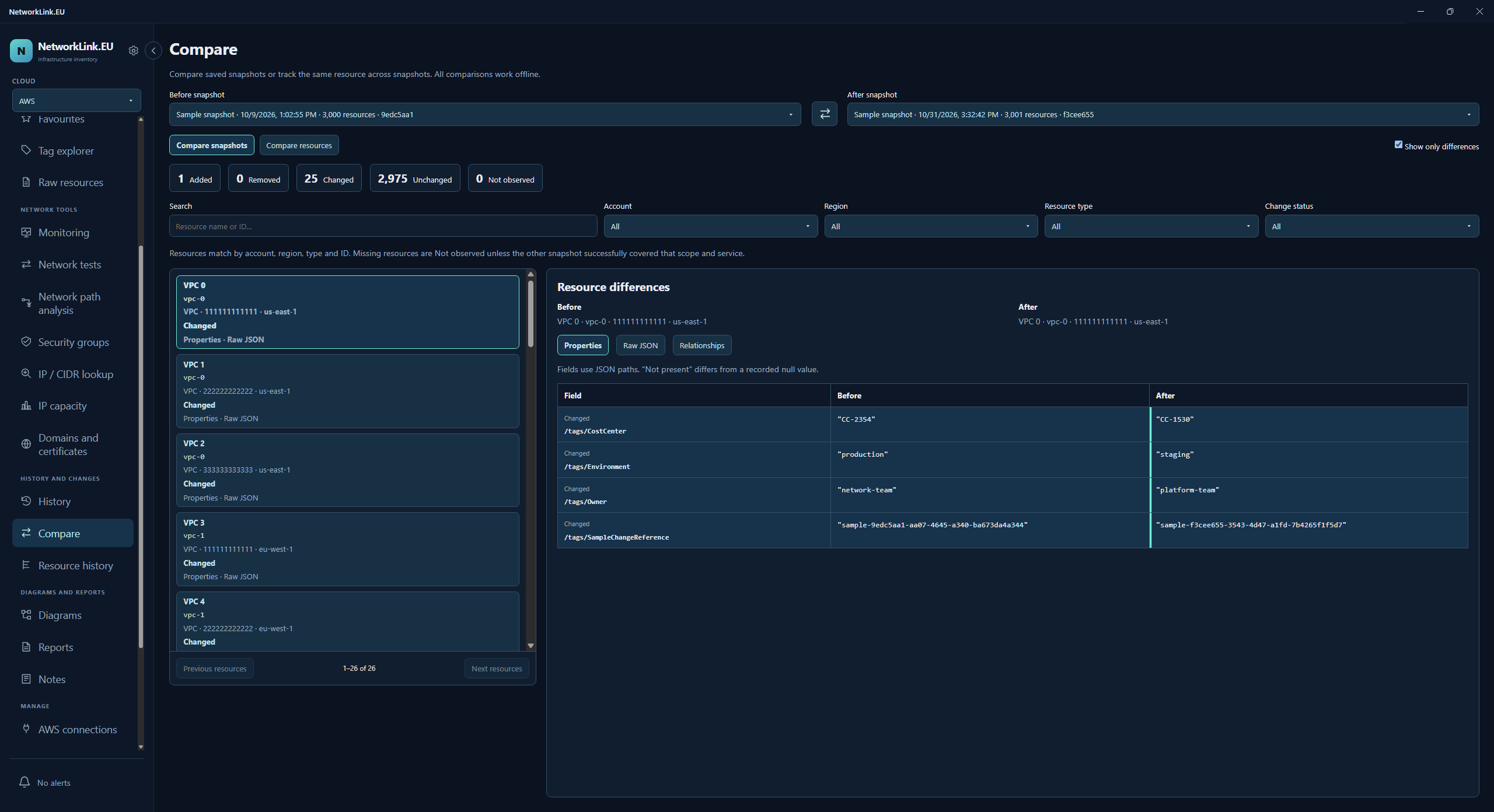
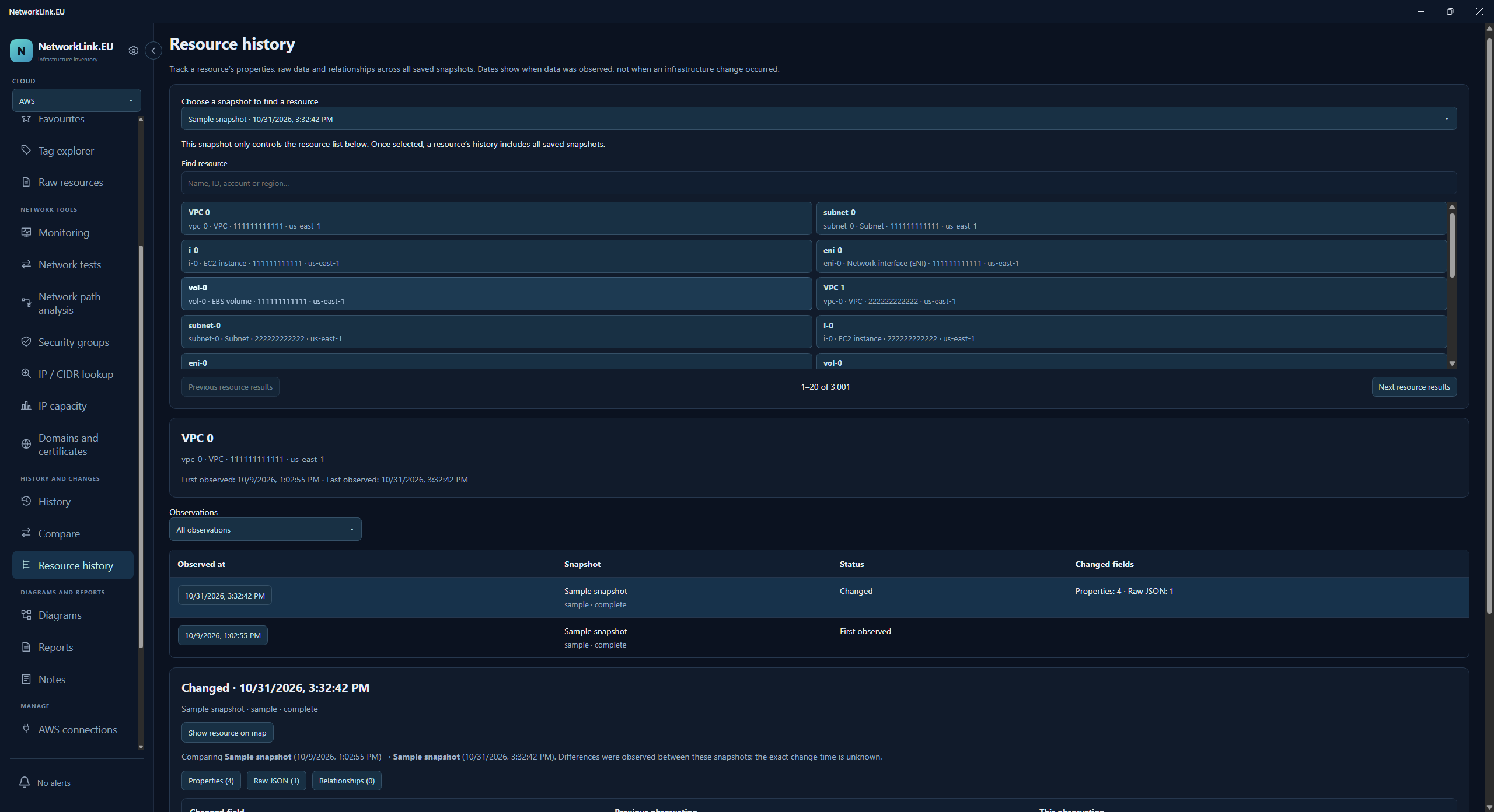
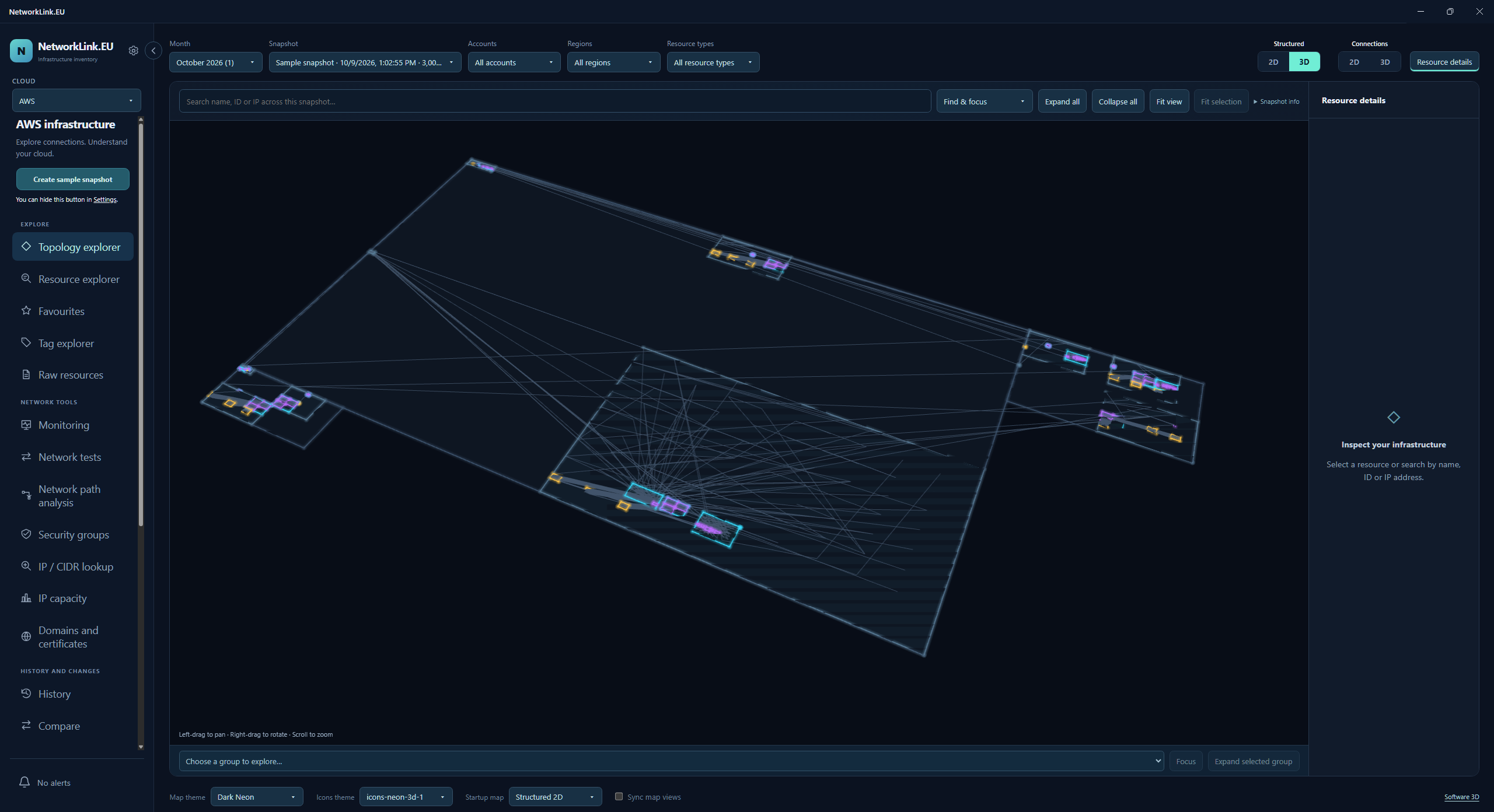
Explore these screenshots from the desktop app, showing an AWS sample snapshot. Select an image to take a closer look.

From resources to relationships

An inventory tells you what exists.
A connected view tells you more.

Select AWS or Azure in the app’s cloud selector. Each workspace shows its own snapshots, resource types and tools, using the cloud’s own terminology. Monitoring, network tests, diagrams and notes are shared.

01 / EXPLORE

Choose your perspective

Explore AWS accounts, VPCs and subnets, or Azure subscriptions, VNets and subnets. Switch between Structured and Connections maps to view resource groups or relationships. Both clouds offer all four 2D and 3D views.

Search · Filter · Focus · Expand
02 / INSPECT

Follow the connections

Find a resource by name or ID and inspect its properties, tags and saved native API responses. Follow recorded relationships in the map and resource details.

Resource details · Raw JSON · Native cloud terminology
03 / COMPARE

Understand what changed

Compare two snapshots or follow one resource through its saved history. Review configuration and relationship differences, with collection coverage kept in context.

Before / after · Resource history · Collection coverage
04 / INVESTIGATE

Explain a network path

Evaluate supported IPv4 and IPv6 flows using each cloud’s saved routing and security configuration. See the decisions and where the evidence runs out. Path coverage differs between AWS and Azure.

Allowed · Blocked · Unknown
05 / DRAW

Build the diagram you need

Import selected snapshot resources and their connections into an editable diagram, or start from a blank grid. Add your own icons, groups, labels, shapes and links.

Custom icon folders · JSON · SVG · PNG
06 / SHARE

Give findings their context

Export resource data and diagrams from either cloud. In the AWS workspace, build investigation reports with selected resources, changes, path results, diagrams and notes, and save reusable templates.

Data and diagram exports · AWS HTML/PDF reports
Network path analysis

Follow the path.
Understand the decision.

Select a source, destination and protocol to investigate how the saved configuration treats the traffic. Each workspace applies its own cloud’s routing and security rules.

  • AWS: inspect routes, security groups, network ACLs and supported gateway and service paths.
  • Azure: analyse private VM and NIC paths within a VNet or across direct VNet peering, using route tables and subnet/NIC network security groups.
  • Review supported forward and return routing.
  • Keep missing or unsupported evidence visible with an explicit Unknown result.

This is configuration analysis, not a live packet trace. Guest OS firewalls, custom appliances and application behaviour cannot be fully evaluated. An Allowed result describes the saved configuration, not a guarantee of connectivity. Azure appliance, gateway and service-translation paths may remain Unknown.

Observe. Test. Keep a record.

Follow availability and performance.
Keep your inventory up to date.

Go beyond saved configuration with checks from your own computer. Monitor manually entered targets, measure transfers and capture AWS or Azure snapshots on a schedule.

MONITORING

Know when an endpoint stops responding

Add IP addresses, hostnames or URLs for ICMP ping, TCP and HTTP/HTTPS checks—including devices outside your cloud environments. Set each target’s interval, timeout and failure threshold, and choose the HTTP status codes you expect.

Review recent results, response times and HTTP headers. Alert and recovery indicators help you spot what happened while you were away. Keep a configurable history and export selected checks or incidents as HTML, with recorded local network details where available.

Per-target settings · Alert history · HTML exports
NETWORK TESTS

Measure the connection you actually use

Run TCP or UDP throughput tests with iperf2 or iperf3. Use the app as a client or server, with one iperf session at a time, and start from built-in test templates. Select your separately installed iperf executable in settings.

Test single or parallel file downloads over HTTP/HTTPS or FTP/FTPS, including S3 presigned URLs. Review throughput, transfer results and errors, then export reports from test history. iperf reports also expose jitter, loss or retransmissions when the tool and test provide them.

iperf client / server · Download tests · Test history
SCHEDULED SNAPSHOTS

Build a record without repeating the setup

Schedule AWS scans with selected connections, regions and services, or Azure scans for a selected subscription across its supported regions and resources. Run at regular intervals or specific times of day, and add a snapshot-name prefix.

Scheduled snapshots appear in the same History and snapshot selectors as manual scans. Pause or run a schedule on demand, and choose whether to skip missed runs or perform one catch-up scan within your configured limits.

Intervals or daily times · Name prefixes · Missed-run controls

Monitoring and scheduled scans run while the app is open and the computer is awake. Monitoring and network tests send traffic to the targets you choose; snapshot-based network path analysis evaluates saved configuration. Live network tests and cloud scans require a valid licence. Transfers may incur network or cloud data charges.
A repeatable investigation workflow

Collect once. Explore deeply.
Share what matters.

Keep the observation you investigated, the reasoning behind your findings and the diagram that makes them clear.

01 — COLLECT

Capture a snapshot

For AWS, use a read-only IAM role with source credentials or supported direct access keys. For Azure, use a service principal with read-only access to your subscription. Collect on demand or on a schedule, and review successful and incomplete collection results.

02 — INVESTIGATE

Work from the evidence

Explore the map, inspect raw configuration, compare observations and analyse supported paths. Saved inventory stays available locally for offline investigation.

03 — COMMUNICATE

Make the finding useful

Turn resources from either cloud into an editable diagram for a ticket, handover or change review. Add notes and export the data you need. The AWS workspace also offers configurable investigation reports.

AWS investigation reports

Enough detail for the right conversation.

Choose individual resources, fields, comparison details and diagrams. Snapshot names, dates, scan coverage and raw JSON are optional. Preview the result before exporting HTML or PDF.

Investigation reportExample

Application connectivity review

Selected resources · Configuration findings · Engineer notes

Source EC2VPC local routeDestination EC2 10.40.10.1010.40.20.20 Diagram and report content selected by the engineer.
Selected configurationPath findingsDiagramNotes
The details engineers look for

Go straight to the next question.

Purpose-built views help you find the address, rule, resource or change behind an investigation.

IP and CIDR lookup

Search IPv4 and IPv6 addresses, CIDR ranges or partial IPv4 prefixes. Find recorded addresses and matching AWS VPC, Azure VNet and subnet networks.

Resource and tag explorers

Combine resource filters and saved searches. Group by tags, search tag keys and values, and check for missing tags.

Security group inspection

Inspect AWS security groups or Azure network security groups, their rules and associated resources. Follow each cloud’s native security configuration.

Subnet IP capacity

Review AWS subnet availability and Azure capacity estimates from recorded address assignments. Coverage and calculation details help explain the figures.

Domains and certificates

Inspect AWS Route 53 and ACM records, or Azure DNS, hostname bindings and recorded TLS settings. Review certificate expiry where it is available in the snapshot.

History with context

Follow AWS and Azure resources across snapshots and save favourites. In the AWS workspace, request relevant CloudTrail event history for additional context.

Start with the network. Follow it into the workload.

  • Amazon VPC
  • Amazon EC2
  • Transit Gateway
  • Direct Connect
  • VPN
  • PrivateLink
  • Load Balancing
  • Route 53
  • CloudFront
  • Amazon RDS
  • Amazon S3
  • AWS Lambda
  • Amazon ECS
  • Amazon EKS
  • API Gateway
  • AWS WAF
  • ACM
  • …and more

Choose AWS services for each scan. Inventory coverage and network path-analysis coverage differ; incomplete or unsupported evidence is kept visible.

Azure resources. Native relationships.

  • Virtual Network
  • Virtual Machines
  • Network Security Groups
  • Load Balancer
  • Application Gateway
  • Private Endpoints
  • Azure DNS
  • Virtual WAN
  • Azure Firewall
  • AKS
  • App Service
  • Container Apps
  • Azure Storage
  • Azure SQL
  • Key Vault
  • API Management
  • Front Door
  • Service Bus
  • …and more

Collect supported resources in an Azure subscription and follow their native associations. Uncollected targets remain explicit references; a relationship on the map does not prove network reachability.

Annual subscriptions

One app for use
in AWS and Azure

Every plan includes the same app features. One AWS account or one Azure subscription uses one cloud-account slot. Mix both providers within your plan’s total allowance—for example, two AWS accounts and one Azure subscription on the 3-account plan.

3 accounts

€15per year · billed annually

Connect up to 3 cloud accounts.

€5per cloud account
per year

5 accounts

€20per year · billed annually

Connect up to 5 cloud accounts.

€4per cloud account
per year

10 accounts

€30per year · billed annually

Connect up to 10 cloud accounts.

€3per cloud account
per year

20 accounts

€40per year · billed annually

Connect up to 20 cloud accounts.

€2per cloud account
per year

30 accounts

€50per year · billed annually

Connect up to 30 cloud accounts.

≈ €1.67per cloud account
per year

Per-account prices assume the full account allowance is used; the 30-account figure is rounded. Each plan is billed annually at the total shown. Prices exclude VAT. Any applicable taxes are shown at checkout.

A few useful answers

Know what you’re
working with.

A desktop workspace built around recorded AWS and Azure configuration and the engineer investigating it.

Does NetworkLink.EU change my cloud resources?

Inventory collection reads AWS and Azure management APIs. You control AWS credentials and IAM permissions, or the Azure service principal and its role assignments. NetworkLink.EU does not create, update or delete cloud resources as part of inventory collection or path analysis.

Can I work without a cloud connection?

Yes. AWS and Azure snapshots are stored locally and can be explored, compared and used for diagrams offline. New scans need a connection to the relevant cloud. AWS CloudTrail lookups also need an AWS connection. Both workspaces include sample inventory to explore.

Can I use AWS and Azure with the same licence?

Yes. Your allowance is shared across registered AWS accounts and Azure subscriptions. Each counts as one slot. Choose AWS or Azure in the cloud selector to see that provider’s pages and snapshots; switching workspaces does not change your allowance.

Does a line on the map mean traffic can pass?

No. Map connections represent recorded resource relationships. Network path analysis separately evaluates supported flows using saved configuration and reports Allowed, Blocked or Unknown. It does not send packets or prove that a live application is reachable.

What can I export and share?

Export full snapshots as JSON or resource tables as CSV. Diagrams can be exported as editable JSON, SVG or PNG. AWS investigation reports export as HTML or PDF with the resources, diagrams, fields and notes you select. Snapshot JSON can also be imported into NetworkLink.EU. Monitoring checks and incidents, iperf results and download-test results have their own HTML exports.

Can I bring my own diagram icons?

Yes. Add SVG or PNG icons to folders in your local icon library and refresh it in the app. Saved diagrams embed the icons they use, so your existing diagrams retain their appearance when the library changes.

A clearer picture.
A better starting point for your next investigation.

Explore your AWS and Azure environments with NetworkLink.EU.

Create account